
Some digital device users complain that their gadgets do things they would rather they did not do. Their grumble might be justified, but in most cases the whiners are unaware that they can take control of their smart devices and apps by tapping into a utility inherent in their PCs, phones and software. It is called Settings.
Definition
The word setting comes from set. Look at where it comes from.
etymology
[Middle English setten, from Old English settan. See sed- in Indo-European Roots.]
Usage Note: Originally set meant “to cause (something) to sit,” so that it is now in most cases a transitive verb: She sets the book on the table. He sets the table. Sit is generally an intransitive verb: He sits at the table. There are some exceptions: The sun sets (not sits). A hen sets (or sits) on her eggs.
from AHD {American Heritage Dictionary}
Obviously set and sit are originally related. When you set something, you seat it somewhere. You arrange its seating. When you set your device, you order it to behave in the manner you desire.
Illustrations
When you get a new device, leave the default settings as they are. It will function without any glitches. As you use the device more, you will be finding a lot of its functions not useful. You might never touch some of them before the device expires. To cut distractions and increase efficiency, you are at liberty to go to Settings, where you can turn off the superfluous behaviour.
Example 1
Some apps start themselves when your PC is booted. This is not necessary. Too many apps running at system boot slows down the machine. Go to Settings\Startup Apps and turn the apps on or off. Most apps are not essential to the OS. Just let them sleep until you ned to wake them up for their jobs. See the image.

Example 2
Google Chrome is a great browser. But its updating process runs all the time in the background. Like Google Updaters, a lot of apps do not show in the Settings\Startup Apps. Where should you turn then? In most cases, Windows Services is where you can catch the culprit and put it in a cell. Windows Registry can serve you better, but you’d better not tamper with it, should you be a novice. See the image.

Example 3
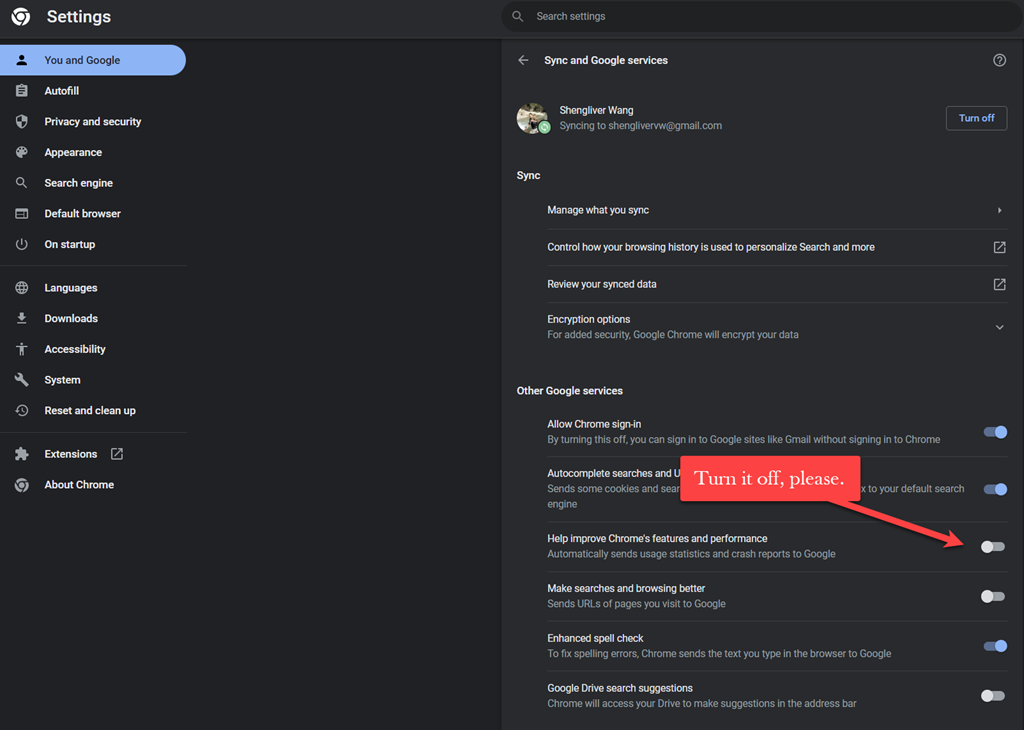
Conscientious apps such as Google Chrome have their own settings, where you can control their behaviour. By turning off “Help improve Chrome’s features and performance”, you stop the browser’s corresponding behaviour running at Windows’s boot. See the image.
Final Word
It works the same way with your phone. I have been using a Huawei Pro 9 since 2016. It is an Android device. Initially it ran a lot of services and apps without my knowledge. As I became more familiar with its quirks, I learned to uninstall the bloatware shipped with the phone and to disable what I did not need or want. Today the device, 7 years on, is still as fresh as new. A lot of my colleagues often report that their 2- or 3-year-old smart phones have this problem and that. I suspect they do not take advantage of Settings in their device.
In time, right settings on, your PC or your phone will perform, at concert pitch, to your satisfaction.
I am not an Apple user. Although the Apple ecosystem is notorious for its restrictions on user DIY, I am a sure that there is still action “an apple” can take to make their iOS or macOS even faster, quieter, and smoother.
One thing to remember is that when you do need a functionality to run but it is off, go to Settings of your device or the app and turn it back on. It is not dead or has been slaughtered, but lies dormant in your gadget. It will come back at your service, anytime.
 Shengliver Studio